
17
Apr
How-To: Delete a VM via a PowerCLI Scheduled Task
This is a PowerCLI script that you can use to delete a VM which can be put into a Windows scheduled task job to be ran at a specified time and date. Below is the code snippet for the script:
Add-PSSnapin VMware*

$VISRV = “vc.lab.local”

$dieVM = “VM-001”

Connect-VIServer $VISRV

$VMToDelete = Get-VM $dieVM

If  ($VMToDelete.PowerState –eq “PoweredOn”) {

Shutdown-VMGuest –VM $dieVM

}

Remove-VM $dieVM –DeletePermanently –confirm:$false –RunAsync
To set a scheduled task by PowerCLI in Windows you can follow the well-known Alan Renouf’s walkthrough called Running a PowerCLI Scheduled Task
11
Apr
How-To: Create a VMkernel Adapter on a vSphere Standard Switch
Create a VMK adapter on VSS in the vSphere Web Client
This is a walk-through of how to setup a VMkernel port adapter on a vSphere Standard Switch using the web client.
Procedure
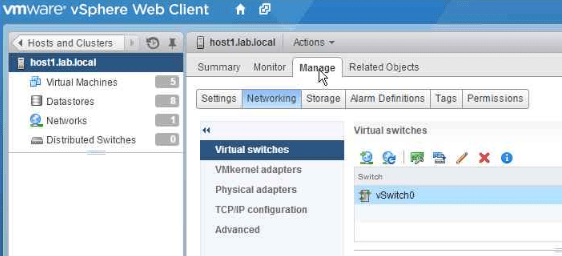
- Once you’re logged into the web client then navigate to the host to where you would like to setup the vmk adapter:
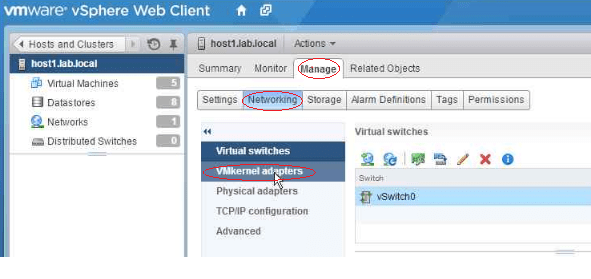
- Choose Manage, select Networking and then select VMkernel adapters.
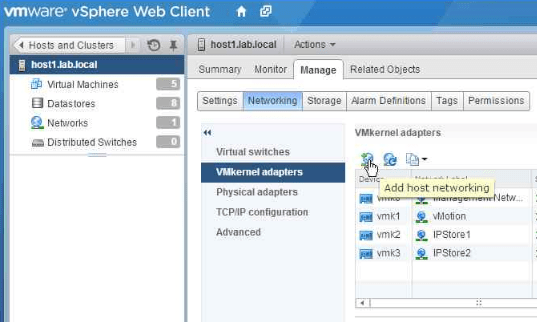
3. Click on Add host networking.
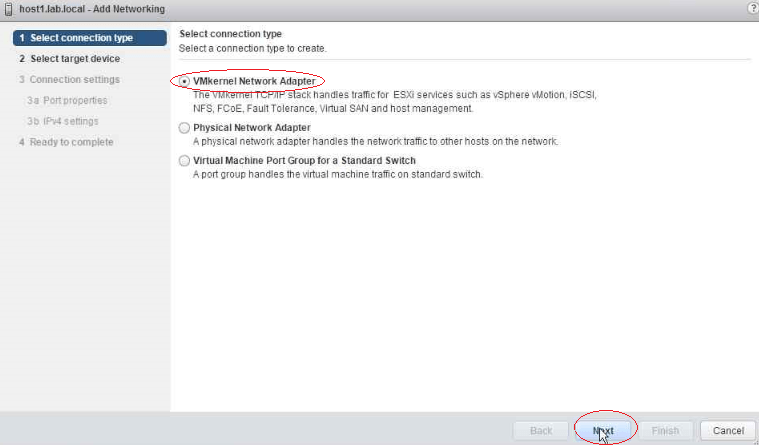
- On the Select Connection type page, select VMkernel Network Adapter and click Next
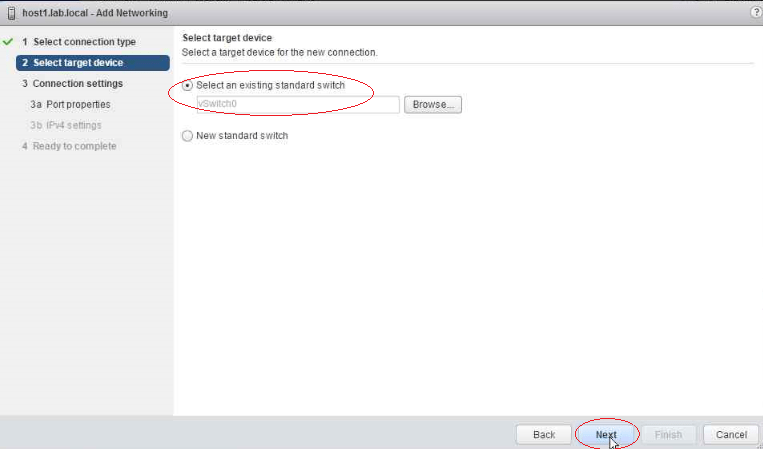
- On the Select target device page, select either an existing standard switch or a New vSphere standard switch. In this example I’m choosing an existing VSS called vSwitch0.
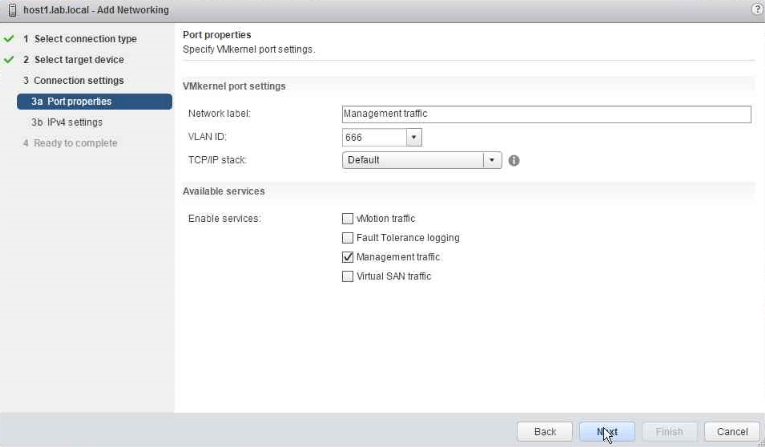
- On the Port properties page, configure the following settings:
Network label (name of vmk adapter): (for example: Management traffic)
VLAN ID: (for example: 666)
TCP/IP stack: (for example: Default)
Enable services: Management traffic
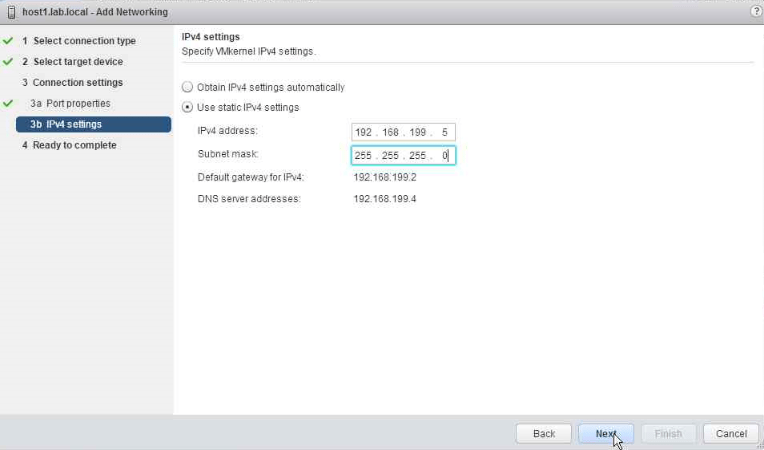
- On the IPv4 settings page, select an option for obtaining an IP address. For this example, I’ve chosen to use a static IP address of 168.199.5 and Subnet mask of 255.255.255.0
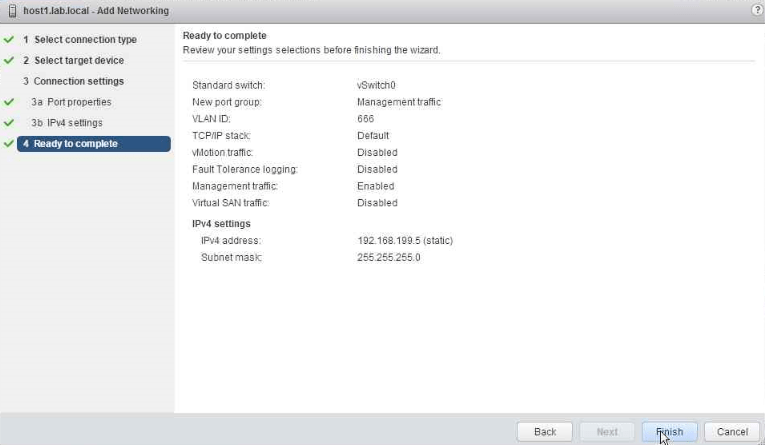
- On the Ready to complete page then review your setting selections and click on Finish
 Digital4n6.me